

🧑🤝🧑Manage People
Add, remove and invite people, and manage their roles.
Admins and Owners can manage the people in an Organization.
Click the Organization Settings in the left menu or go directly to People Management.
People Management
The People screen shows how many people are in the Account across all teams, compared to the total seats set in your Billing.
From here you can add and remove people from the account, or change people's account roles.

Roles
There are four Account roles in Spreo - Owner, Admin, Member, Guest.
The Owner has the most permissions, Guest has the least. Any number of people can be assigned to each role (within your billing limits).
Owner:
The top-dog role with all permissions. They have access to all Billing and Admin controls.
Admin
Admins have access to all Admin functionality except Billing. This means they can manage People, Teams, Boards, Access Control, SSO, Activity Logs. Like Owners, they also have all the functionality of a Team Member.
Member
This is the standard role in Spreo. Most of your people will be this role. Members can join teams, create and participate on boards, run meetings, organize boards, create and view actions... all the standard stuff.
Guests
Guests are external to the Organization and do not require a licensed seat. They can only access the individual boards they are invited to. They cannot access the team dashboard or workspaces.
Guests are part of the Enterprise and Consultant plans, and every legacy plan except Starter. On the Team plan, people outside your team join open boards as visitors instead. See Roles and Licenses.
Invite people

Anyone can be invited to join the Organization, but your Access Control or SSO settings will prevent unwanted visitors.
Invite by email
Any member, Admin or Owner can invite others by email. The recipients will receive an invite in their inbox to join a Team in your Organization.
Invite Link
Any member of a team can generate an invite link to share with others, adding them to that Team. Invite links expire after 14 days, and are not available while Invite Approvals are switched on.
Removing People From The Organization
To remove a user from your Organization, find their user in the People Admin section, and choose 'Remove From Organization'. This removes their access to the Organization and all content within. The teams, folders and boards they created or participated on will still be available for others in the Organization to use.
Removing a person from an Organization does not delete their user account. The user will need to delete their own user account.
If a person was removed accidentally from the Organization, they can be re-invited.
Appointing other Admins / Owners
Owners can promote other people in the Organization to Admin or Owner. Admins can promote other people to Admin. Nobody can change their own role.
Owners and Admins can also demote any other Admin to a regular Team Member.

Invites and Access Requests
The Invites tab in People Management lists every invitation sent by email and every request to join your Organization. Owners and Admins can see it on all plans.
What appears here
Email invites sent from a team or from a board's share dialog. On plans with guests (Enterprise, Consultant and every legacy plan except Starter), this includes board guest invites. Each row shows who sent it and when it expires.
Access requests from people who asked to join. Someone can request access when their email domain isn't on your Auto-Join list, when your Organization is invite-only, or when an invite link has no seats left. On plans with guests, they can also request access when a board has no guest slots left. Access requests have no "Created By" person.
Pending member invites, if you've turned on Invite Approvals (Enterprise).
People who join with an invite link or a shared board link aren't listed here. You'll find them on the Members tab once they've joined.
Reviewing requests
Access requests always need an Owner or Admin to approve them, on every plan. When something is waiting, a Review Pending Invitations button appears with a count. You can also open the ⋯ menu on a pending row and choose Review.
Approve sends the person an invite email, which expires after 14 days. You need a free seat to approve.
Reject closes the request. The person isn't emailed.
To withdraw an invite that has already gone out, open its ⋯ menu and choose Cancel.
Invite Approvals
(Enterprise plans only)
On Enterprise plans, Owners and Admins can also require approval for invites that members send, from the People Management screen.
Turn on "Require admin approval for invites":

This feature implements an admin approval process on all new invites sent by members.
Members can invite other people to their team from the dashboard, entering their email address:
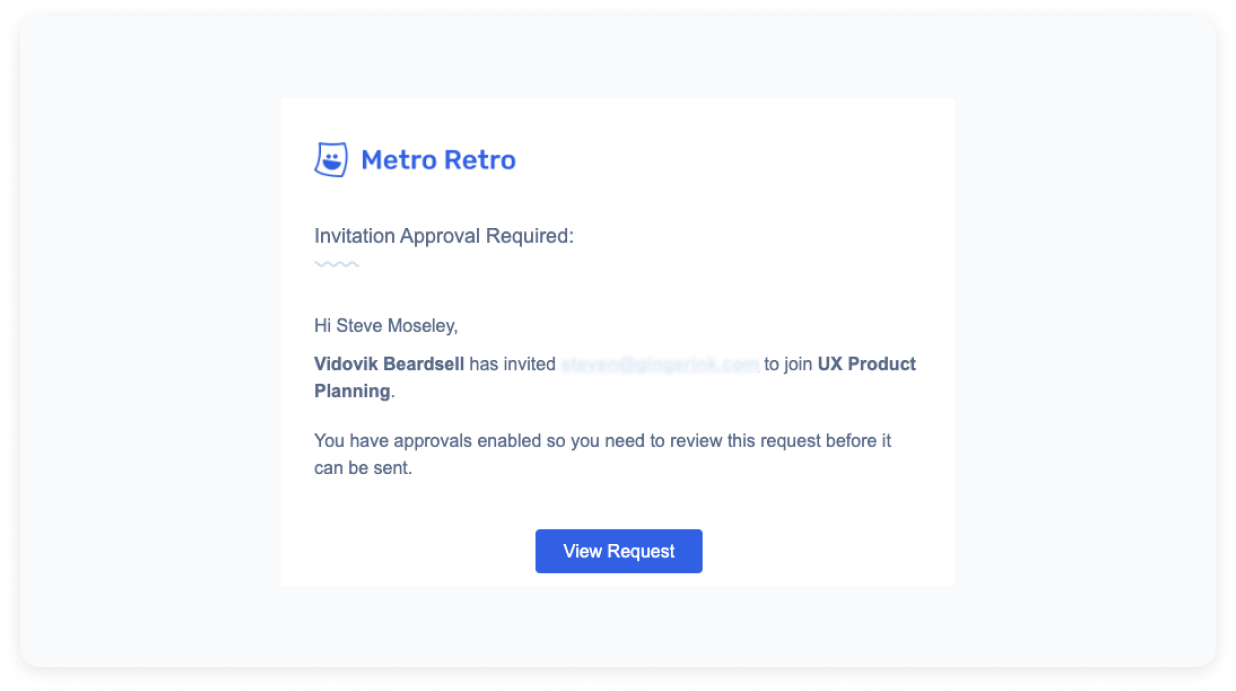
When a member tries to send an invite to someone that is not already in the Account, Admins will receive an email notifying them that a new invite has been requested:
The Admins / Owners can approve or reject invite requests from the Invites tab in the People Management screen (see Invites and Access Requests above):
Reject an Invite Request: if an invite is rejected, the original inviter is sent an email to inform them of the rejection, and the invite status is set to rejected. The invited person does not receive an email.
Approve an Invite Request: when an invite is approved, an invite email will be sent to the invited person, inviting them to the Organization Account. This invite expires in 14 days.
If an invitee does not yet have an user account they will need to register before joining the team.
Please Note
When Invite Approvals are enabled, members can invite others by email only. Inviting new people with a link is disabled.
Note - no approval step is required when an Owner or Admin invites a new member, when the invited person's email domain is on your Auto-Join list, or when someone is invited to a single board as a guest.
If you are using Invite Approvals, we recommend turning off the Auto-Join whitelist that allows users to automatically join the account if they are logged in with the correct email domains when they join a board.
If you have integrated your Single Sign On provider with Spreo, this will override Invite Approvals, so we recommend turning off Invite Approvals to avoid confusion.
Email Notification for New Joiners or Role Changes
Account Owners get an email of any new joiners or role changes to happen in the last 24 hours.

Last updated