> For the complete documentation index, see [llms.txt](https://docs.spreo.io/llms.txt). Markdown versions of documentation pages are available by appending `.md` to page URLs; this page is available as [Markdown](https://docs.spreo.io/management/manage-general-account-settings.md).
# Manage Account
Organization name and logo, auto-join domains, guest access and default teams.
Admins can manage the general Account settings in the admin screen:
* Organization Name & Logo
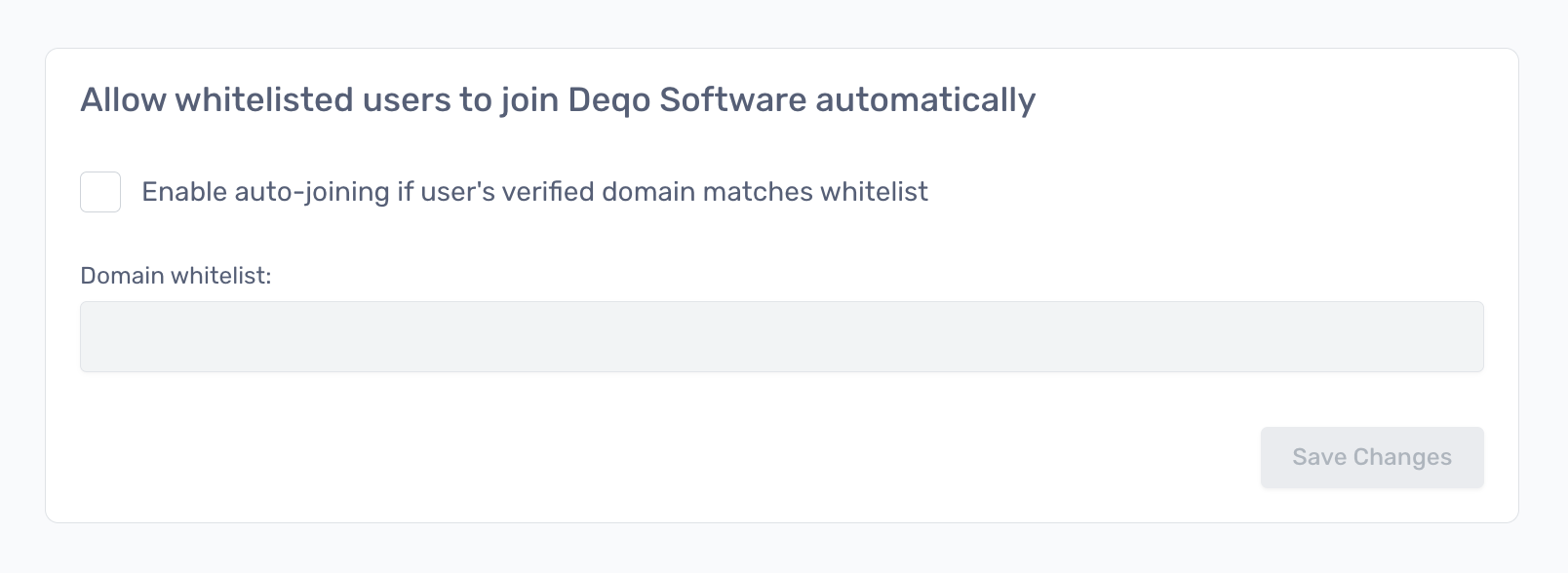
* Auto-join settings
* Allow anonymous guests on boards
* Default team for new joiners
### Auto-Join Settings
**Make it easier for account members to share boards with their colleagues.**
The Auto-Join setting allows you to whitelist your company domains so your colleagues can join the account to participate when a board is shared with them, instead of needing a team invite first.
When someone visits a board in the Account for the first time, if their email address matches the domain, they will automatically join the account if there are available seats.
Simply add your Organization domain(s) to the Auto-join setting to allow automatic account joining for anyone with an email addresses from your domain(s), the first time they visit a board.
If you do not whitelist any domains, new members will need to be invited to the account before they can participate on a board as a member.
New Organizations start with Auto-Join switched on for every email domain. That means anyone who signs in and opens one of your board links can join as a member while you have free seats. Replace this default with your own company domain(s) to control who can join. Wildcards (`*`) are supported.
{% hint style="info" %}
Tip - To allow anyone in your domain to automatically join the account when a board is shared with them, type your domain into the Whitelist setting.
{% endhint %}
If an Organization Account has strict access rules, or a user is invited that does not have a trusted domain, then the user will not be able to join the Organization Account via a board link, and will need to be invited to the Team first.
### Anonymous Guest Access
Account Admins can now toggle whether external guests are required to sign in to join boards across the Org Account. (Note - your plan has to include external guests).
### Default team for new joiners
This is an optional setting, where you can define the default team(s) that new members are added to when they join the account.
If someone is not invited directly into a team when they join the account, they will be added to the team(s) listed in this setting.
{% hint style="info" %}
You do not have to set a default team.
{% endhint %}
---
# Agent Instructions
This documentation is published with GitBook. GitBook is the documentation platform designed so that both humans and AI agents can read, navigate, and reason over technical content effectively. Learn more at gitbook.com.
## Querying This Documentation
If you need additional information that is not directly available in this page, you can query the documentation by asking a question.
Perform an HTTP GET request on the following URL with the `ask` and `goal` query parameters:
```
GET https://docs.spreo.io/management/manage-general-account-settings.md?ask=&goal=
```
`ask` is the immediate question: it should be specific, self-contained, and written in natural language.
`goal` is what the user is ultimately trying to achieve, the reason they need the answer. Sharing it helps GitBook give you a better, more relevant answer. A goal is most helpful when it describes the outcome the user wants rather than restating the question. For example, with `ask=how do I create an API token`, a goal like `automate deployments from our CI pipeline` lets GitBook tailor the answer to that use case.
The response will contain a direct answer to the question and relevant excerpts and sources from the documentation.
Use this mechanism when the answer is not explicitly present in the current page, you need clarification or additional context, or you want to retrieve related documentation sections.