> For the complete documentation index, see [llms.txt](https://docs.spreo.io/llms.txt). Markdown versions of documentation pages are available by appending `.md` to page URLs; this page is available as [Markdown](https://docs.spreo.io/boards/voting.md).
# Voting
Run voting rounds to prioritize sticky notes, topics and cards as a team.
Voting helps your team prioritize items or make decisions as a group. Voting is available on all plans.
### How to Vote
Votes are primarily made on sticky notes or topics, but you can also vote on or task cards or index cards.
Voting is available in [Meeting Mode](/boards/design-and-meeting-mode.md), and votes are counted in **Voting Rounds**.
If nobody has started a round, the first vote starts Round 1 automatically, with unlimited votes per person and duplicate votes allowed. Start a round yourself when you want to limit the number of votes.
A Voting Round can be started by anyone, though we recommend the Meeting Host starts it.
#### Set up a Voting Round
Step 1. Make sure the board is in Meeting Mode:
Step 2. Click the vote tool in the left toolbar (+1):
Step 3. Click the "Start Voting Round" button that appears in the bottom-left:
Step 4. Set your voting round parameters:
* Number of votes per person
* Allow duplicate votes by the same person on a single item
If you leave the number of votes blank, votes are unlimited. Duplicate votes are allowed by default.
Step 5. Then ask your participants to equip the Voting Tool from the left toolbar, and click to vote on the stickies or topics they want to vote on. For the best results, we recommend the team decide to vote on either stickies OR topics, not a mix.
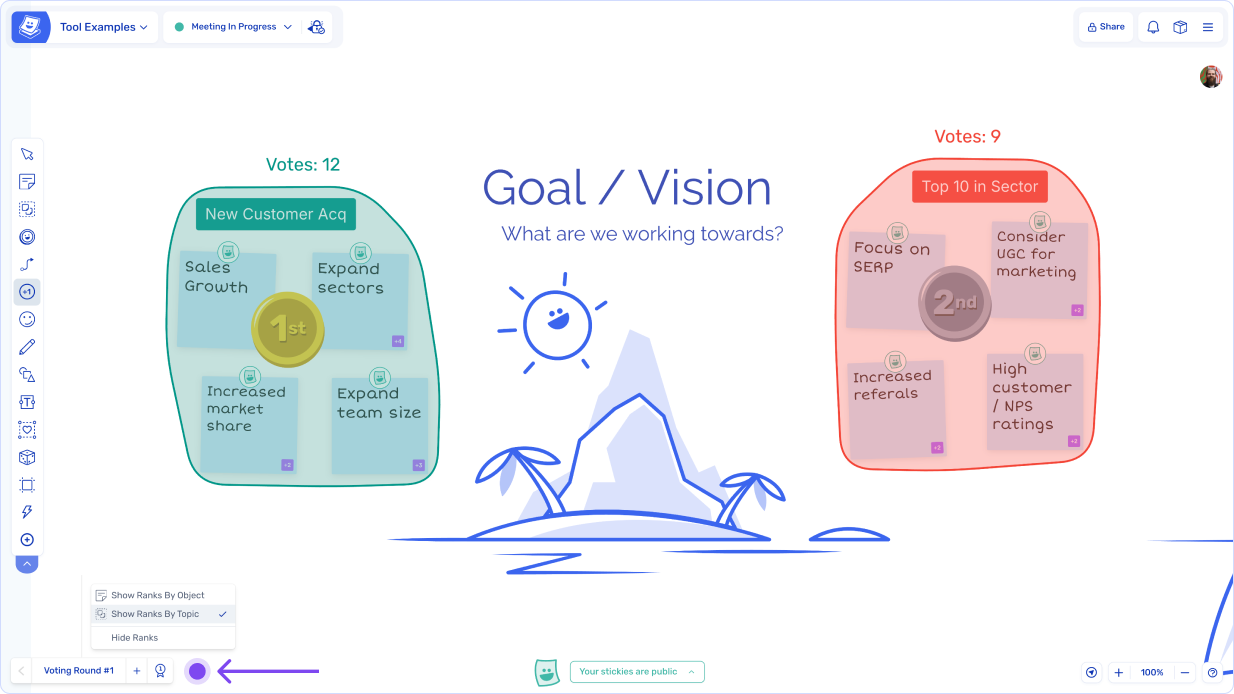
Step 6. Once all votes have been placed, use the voting results button in the bottom left to view the vote rankings:
### Tips for Voting
#### **Remove a vote**
To remove one of your votes: with the voting tool equipped, right-click the item you voted on, or hold `Ctrl` / `Cmd` and click it.
You cannot remove other people's votes.
#### **Add voting rounds**
You can create unlimited additional voting rounds with different parameters. Starting a new voting round locks the results of all previous rounds. A new round can only be started once the current round has at least one vote:
You can switch between voting rounds to review the results, or delete a voting round. Deleting a round removes everyone's votes in it.
#### **See vote totals**
Use the Vote Results button in the bottom left to view the vote rankings. You can toggle between viewing vote rankings for just stickies, or for just topics. If you choose topics, it will combine all the votes on stickies inside the topic as well as votes on the topic itself.
#### **Spotlight people's votes**
You can view all the votes an individual has made by clicking on their picture in the top-right list and clicking "Spotlight", then clicking their name to switch from spotlighting objects to votes. Use the left and right arrows to switch between people:
#### **View who voted for a sticky**
To see who voted on a particular sticky note, click on the vote count in the bottom-right of the sticky:
### **Anonymous voting**
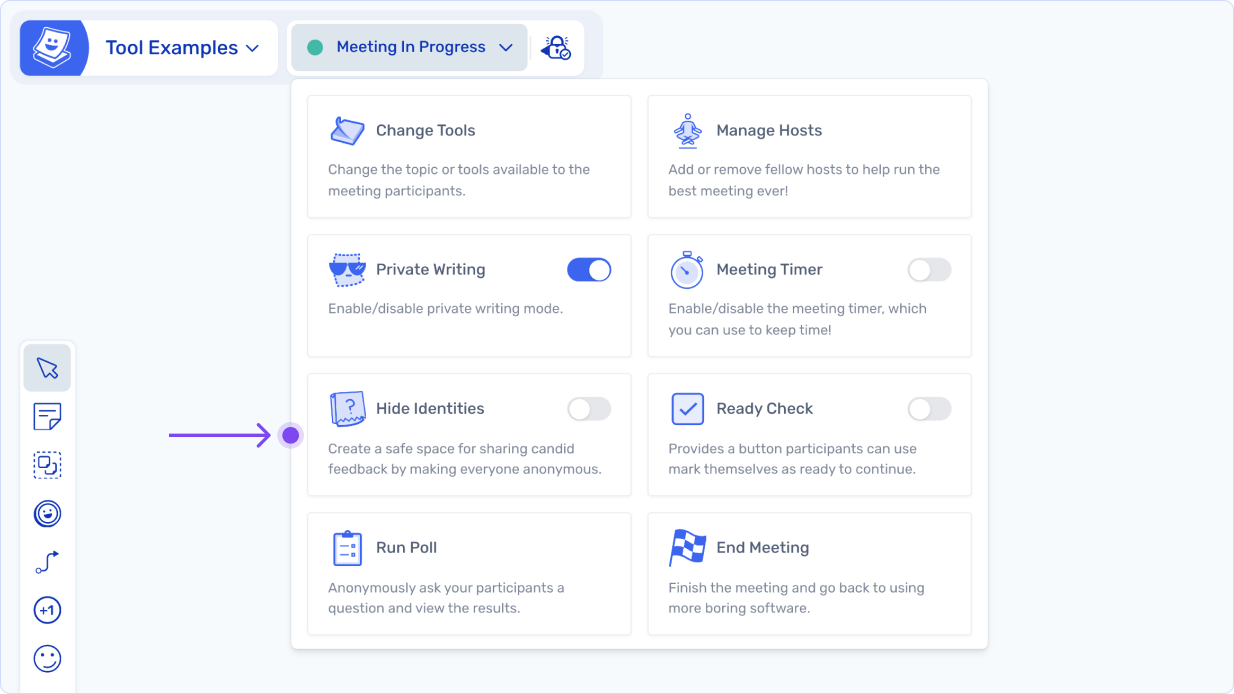
If you want to set up anonymous voting, turn on "[Hide Identities](/boards/host-controls.md#hide-identities)" from the Meeting Host controls at the top of the board. This ensures that no votes can be tied back to individuals.
---
# Agent Instructions
This documentation is published with GitBook. GitBook is the documentation platform designed so that both humans and AI agents can read, navigate, and reason over technical content effectively. Learn more at gitbook.com.
## Querying This Documentation
If you need additional information that is not directly available in this page, you can query the documentation by asking a question.
Perform an HTTP GET request on the following URL with the `ask` and `goal` query parameters:
```
GET https://docs.spreo.io/boards/voting.md?ask=&goal=
```
`ask` is the immediate question: it should be specific, self-contained, and written in natural language.
`goal` is what the user is ultimately trying to achieve, the reason they need the answer. Sharing it helps GitBook give you a better, more relevant answer. A goal is most helpful when it describes the outcome the user wants rather than restating the question. For example, with `ask=how do I create an API token`, a goal like `automate deployments from our CI pipeline` lets GitBook tailor the answer to that use case.
The response will contain a direct answer to the question and relevant excerpts and sources from the documentation.
Use this mechanism when the answer is not explicitly present in the current page, you need clarification or additional context, or you want to retrieve related documentation sections.