> For the complete documentation index, see [llms.txt](https://docs.spreo.io/llms.txt). Markdown versions of documentation pages are available by appending `.md` to page URLs; this page is available as [Markdown](https://docs.spreo.io/boards/jira-integration.md).
# Jira Integration
Visual planning and action tracking with your Jira backlog in Spreo
{% hint style="info" %}
Jira integration is available on every plan except Starter, and is included in the free trial. For more information about what is included in each plan, [read our guide here](/plans/plans-overview.md).
{% endhint %}
Our two-way Jira integration lets you work with your Jira backlog in your Spreo board.
You can import backlog items from Jira to Spreo, and send issues to Jira from your stickies in Spreo.
### Connect your Atlassian account and import your data
#### Sign-in to Atlassian
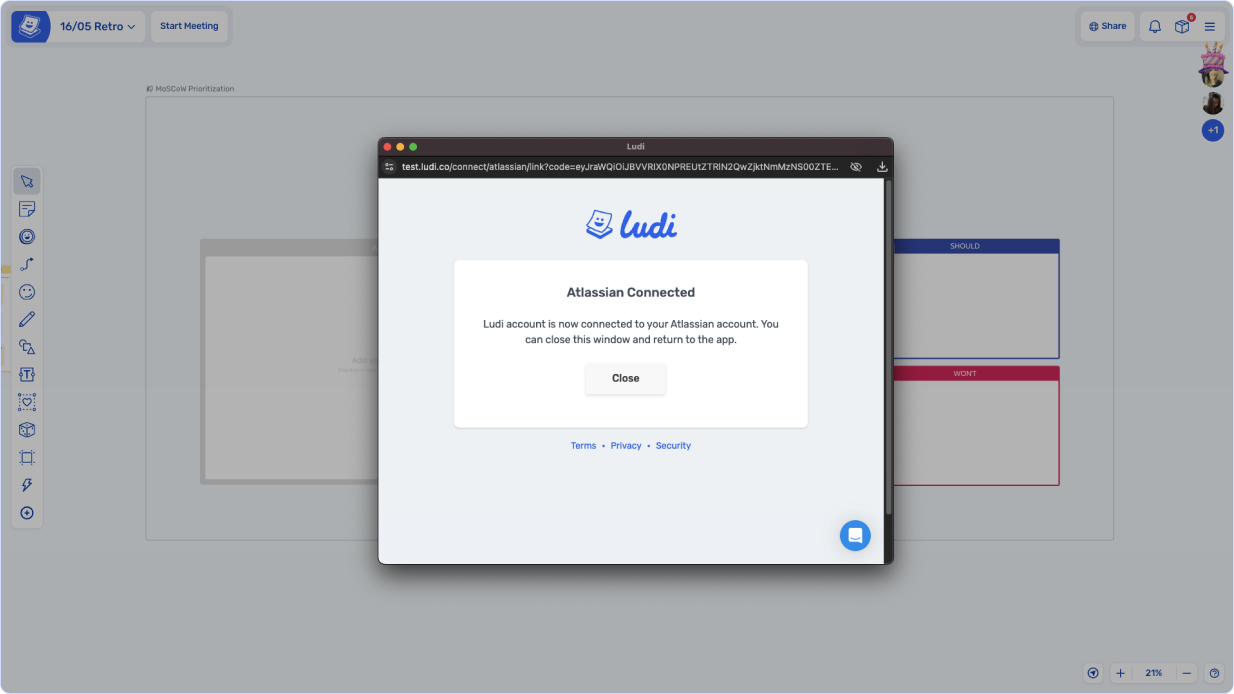
To connect your Atlassian account and import Jira cards, use the Insert option in the [Toolbar](/boards/the-tools.md), or click the board name and choose Import/Export, then Import Data. Or, if you are using one of our Jira 'powered' templates you will see a 'Import From Jira' button on the board.
Sign-in to Atlassian to connect
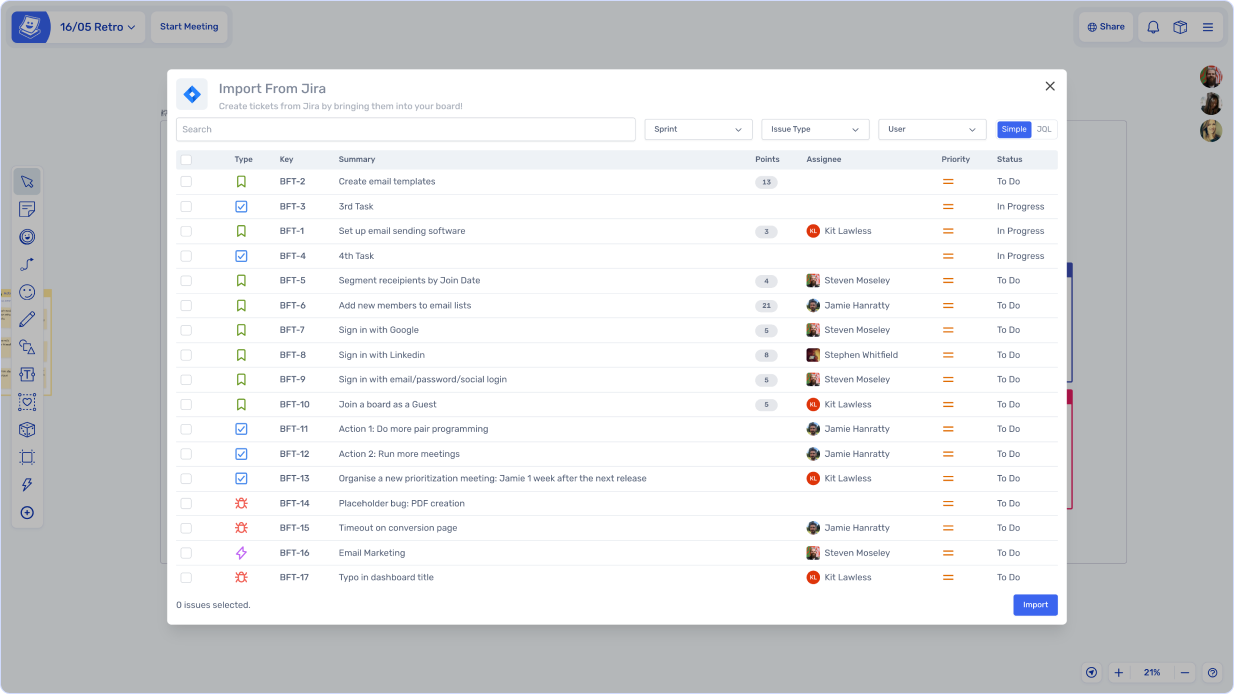
#### Select and import your project items
Pick a project and scroll to view project issues. Use filters or JQL to find specific issue types. Either select individual items, or use the top left check-box to select all. Then use 'import' to add the items top your board.
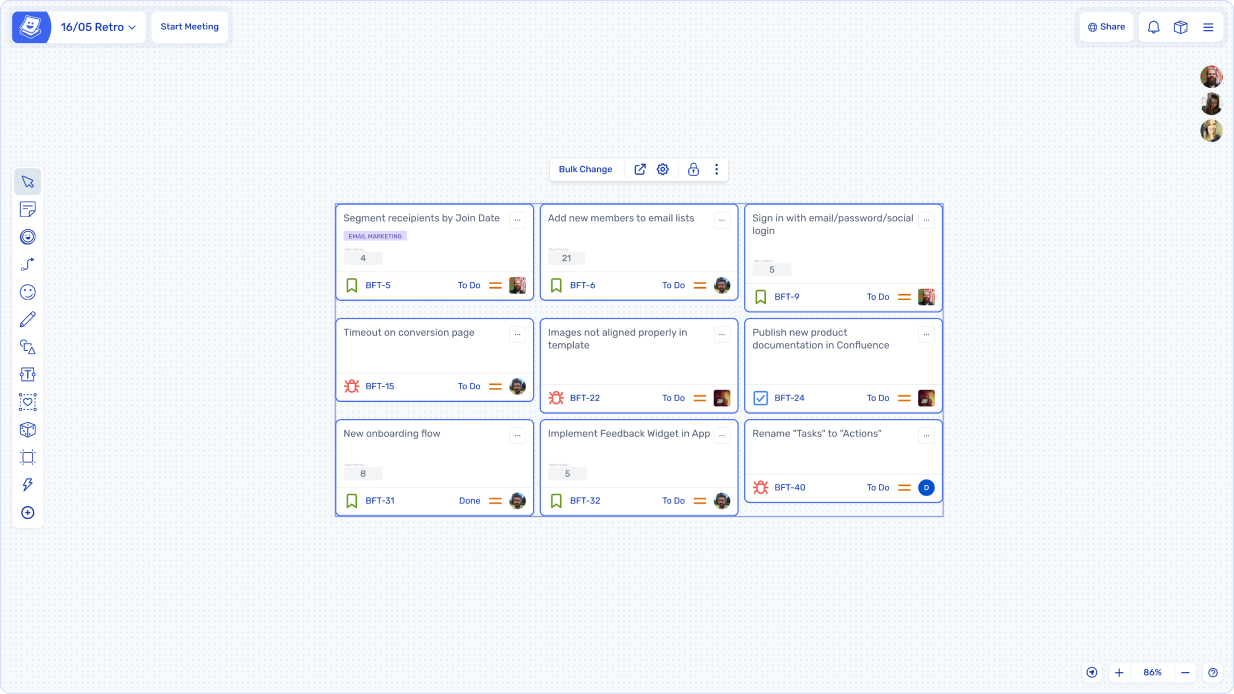
Your Jira cards will be added to the board and ready to use.
### Edit a Jira card
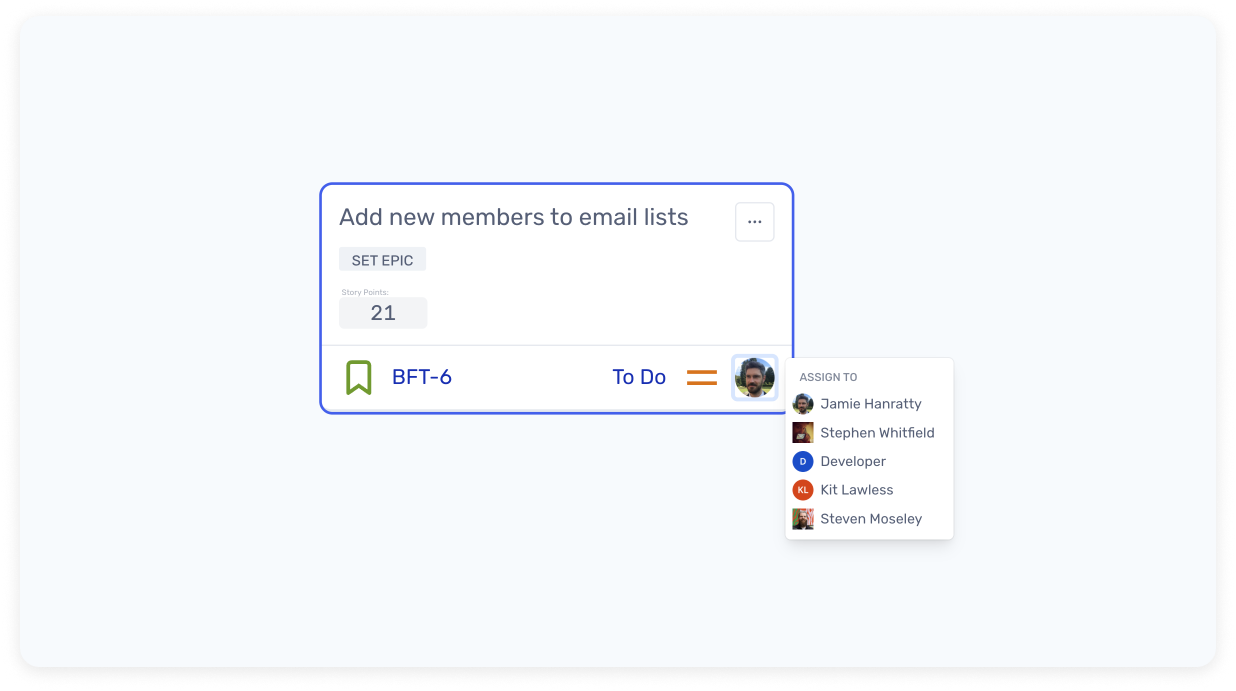
All visible fields on a Jira card are editable inline - just double click a field:
Or click the "more details" button in the top right of a Jira card to edit more details:
* view and edit the description
* view and make comments
* update additional fields
### Bulk update Jira cards
Select multiple Jira cards and select 'Bulk Change' from the floating menu bar to change properties across the Jira issues. You can assign the issues, or change their priority, issue type, sprint, story points or status (Transition).
### Open a card in Jira
Select a Jira card and click 'Open In Jira' to open the issue in a new tab.
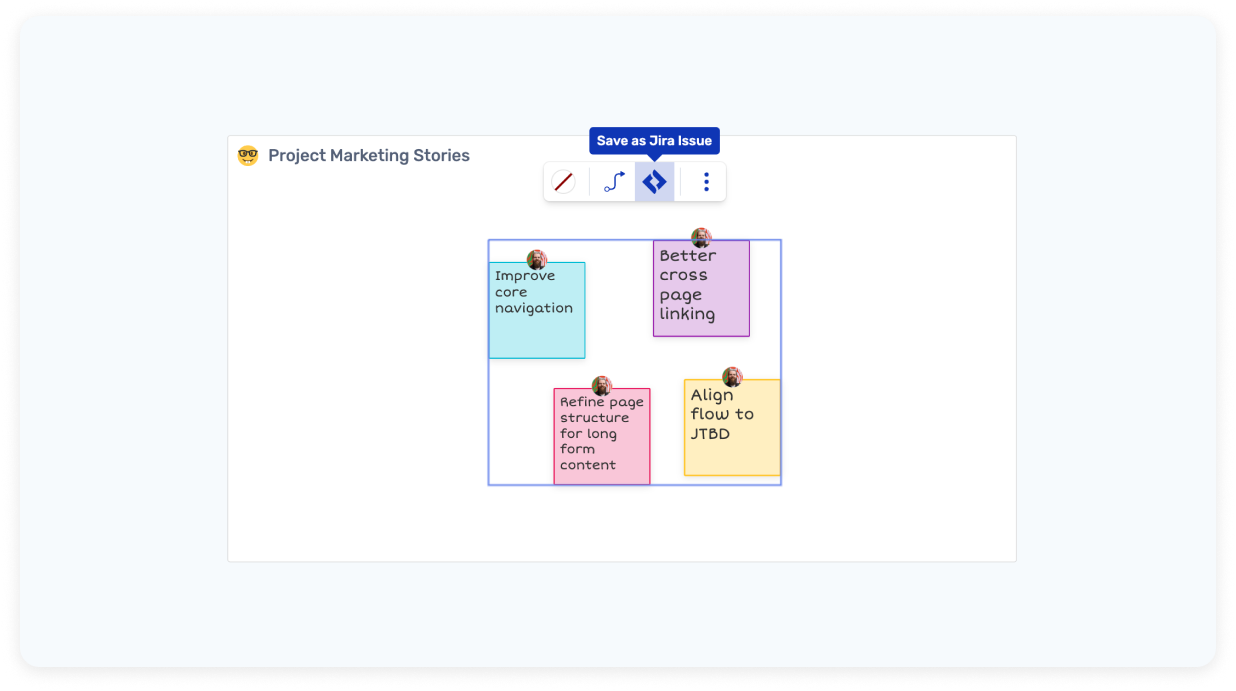
### Create Jira issues from sticky notes
To create Jira items from sticky notes:
* Select the sticky notes, index cards or task cards you want to send to Jira. You can convert up to 20 at a time
* Click the "Convert to Jira Issues" button:
* Pick your Jira project
* Use the Create Issue form to add detail to your Jira items - pick the issue type, add description, complete the mandatory fields
* Create issues - when they are confirmed, your stickies will convert to editable Jira cards
* Go to Jira to see your newly-created Jira items!
### Show additional fields on Jira cards
Jira cards show all the basic fields, based on the issue type. If you want to display more fields on your Jira cards, select a card and click "Configure Fields".
Admins can also set organization-wide Custom Field Rules under Manage, then Integrations, then Atlassian, to always include or always hide a Jira custom field for a project.
### Set Issue Border Colour
Mark Jira cards with different coloured borders. Useful for designating Jira cards in any way you like. This is in Spreo's visual layer only, it does not affect your Jira data.
### Delete a Jira card
To delete a Jira card in Spreo, simplty select it and hit the delete key. Deleting a Jira card in Spreo **does not** delete the issue in Jira. It only removes the card from your board.
### How syncing works
Changes you make to a Jira card in Spreo are written to Jira straight away. Changes made in Jira appear in Spreo when the board is opened or reloaded, or when you import again.
### Jira Integration Feedback
We need your feedback to know what's missing for your team and how we can improve the Jira integration for you. Talk to us using the support chat in your boards or email us contact \[@] spreo.io.
### Data Security when using the Jira Integration
At least one user on a board must be present and connected to Jira with their Atlassian credentials.
Any user with access to a board can **view** the Jira issues that have been imported, this includes guests.
Only users that have an active connection authenticated through your Organization's Atlassian login can make updates to Jira issues.
Your Jira data is not permanently stored in Spreo when imported. Only the Jira issue ID is stored, and each time the board is opened or refreshed, the full payload of issue data is retrieved each time using those issue IDs. This is stored in temporary memory, which is removed once all Atlassian-authenticated users close the board.
Jira integration data security - expand for more detail
Spreo <> Jira integration
### Why connect Spreo to Jira?
Teams can use their Jira data in Spreo for a variety of reasons:
* Sprint Planning
* Workload management
* Retrospectives and Sprint reviews
* Task management
* Scoping and planning
* Roadmaps
* Visualisation of workstreams
### How does Spreo connect to Jira?
Spreo uses OAuth 2.0 to connect a Spreo user to a Jira user. The user initiates this flow from within Spreo. Their active user (e.g. who they are logged in as) will be connected to their Jira account via the Atlassian OAuth 2.0 login flow.

*Note: Deqo Software Ltd is our registered company name, we make Spreo.*
Each person connects their own Atlassian account, either the first time they use a Jira feature on a board or from Integrations in Your Settings. No admin setup is needed.
When you connect, Spreo asks Atlassian for permission to: read your profile; read and write Jira issues, comments and attachments; read projects, issue types and issue links; read and update boards and epics, and read sprints, in Jira Software; and stay connected so you do not have to sign in every time.
Once the user has logged into their Atlassian profile and agreed to the connection, Altassian provides us with an offline refresh token that we can use to make requests on behalf of that Jira user. If the user wishes to remove this connection, they can do so at any time from their user preferences in Spreo.

### What can Spreo users do with their Jira data?
Users with an active connection to their Atlassian/Jira user can:
* View Projects they have access to
* View and import Issues they have access to
* Create or Update Issues they have access to
Currently, there is no way to delete data in Jira via Spreo. This is a design choice we made to prevent any accidental deletion of data. Deleting a Jira Card on a Spreo board just removes the link to the issue.
### What Jira data is stored in Spreo?
Spreo stores:
* Issue data that is imported/loaded for 24 hours in a temporary cache. This includes issue metadata as well as metadata about related objects such as assigned users or epics/sprints.
* Issue ids that are imported into boards until they or the board is deleted.
The key point here to understand is that we do not store any data from Jira, except the ID of issues, in our primary databases.
When a user opens a board that has imported Jira Cards (or imports for the first time), the app will request the latest version of these issues from the temporary cache or Jira, assuming the user has a connection to Jira active. If not, the tickets will appear in a placeholder state with no data present.
### Can non-authenticated users view Jira data?
Non-authenticated users cannot independently access your Jira data, but if Jira data has been brought into a board they have access to by another authorized user, they will be able to view the data if it’s been loaded into the board. They cannot modify it.
**An example:**
An employee of your company imports Jira issues into a board, then invites an external guest from outside the company to the board. The guest will be able to view the imported data, but cannot make changes.
### Questions & more information
If you have any other questions, please feel free to email with your questions.
Our [Security](https://spreo.io/security), [Terms](https://spreo.io/terms), and [Privacy](https://spreo.io/privacy) pages may also be useful.
{% hint style="info" %}
Each Spreo organization connects to one Atlassian site, and everyone in the organization must connect to that same site. If you have access to several Atlassian sites you will be asked to pick one when you connect. Contact support if your organization needs to switch to a different site.
{% endhint %}
### Jira Data Centre
The integration works with Jira Cloud. Get in touch with us if you are self-hosting Jira Data Centre, and wish to use Spreo with your Jira instance.
### Using other issue tracking / project management tools?
If you are using other tools to manage your projects, such as DevOps, Linear, Github Projects, Asana, Monday, Clickup - you can [import backlog items from csv](/boards/import-data-to-your-boards.md#import-csv-or-tabular-data), copy-paste from text, or get in touch with us about upcoming integrations.
---
# Agent Instructions
This documentation is published with GitBook. GitBook is the documentation platform designed so that both humans and AI agents can read, navigate, and reason over technical content effectively. Learn more at gitbook.com.
## Querying This Documentation
If you need additional information that is not directly available in this page, you can query the documentation by asking a question.
Perform an HTTP GET request on the following URL with the `ask` and `goal` query parameters:
```
GET https://docs.spreo.io/boards/jira-integration.md?ask=&goal=
```
`ask` is the immediate question: it should be specific, self-contained, and written in natural language.
`goal` is what the user is ultimately trying to achieve, the reason they need the answer. Sharing it helps GitBook give you a better, more relevant answer. A goal is most helpful when it describes the outcome the user wants rather than restating the question. For example, with `ask=how do I create an API token`, a goal like `automate deployments from our CI pipeline` lets GitBook tailor the answer to that use case.
The response will contain a direct answer to the question and relevant excerpts and sources from the documentation.
Use this mechanism when the answer is not explicitly present in the current page, you need clarification or additional context, or you want to retrieve related documentation sections.
.png?alt=media&token=f6b80527-aadd-497d-b1f8-33caa0c4c897)



.png?alt=media&token=9c04a837-4a9d-43a8-84ce-23b8531b11da)
