> For the complete documentation index, see [llms.txt](https://docs.spreo.io/llms.txt). Markdown versions of documentation pages are available by appending `.md` to page URLs; this page is available as [Markdown](https://docs.spreo.io/boards/import-data-to-your-boards.md).
# Import data to your boards
Bring text, CSV data, tables and Jira issues onto your board.
There are three ways to import data into your board:
1. **From text** - just copy and paste directly into the board. Each new line is a sticky note. Simple!
2. **CSV** - Drag & drop or copy/paste a CSV file or tabular data onto the board.
3. **Jira** - Connect to your Atlassian account and pull tickets directly into your board.
### Import CSV or Tabular Data
If you want to import structured data to a board, you can drop a .csv file onto a board, paste .csv data or use the Insert option in the Toolbar. You then choose what the data becomes: Stickies, Index Cards, Tokens, Task Cards, Stickies In Zones or Stickies In Topics.
#### How to import and map your data
1. Drop, paste or Insert your CSV data
2. Select how you would like the data imported (Stickies, Index Cards, Tokens, Task Cards, Stickies In Zones or Stickies In Topics), then map your columns.
3. Confirm the import and your data will be automatically created on the board for you.
*Tip - You can undo an import with* `Ctrl + z`*, or use the undo button.*


#### Good to know
* Your data needs at least two rows, and every row needs the same number of columns.
* Tables copied from a spreadsheet, a web page or a document can be pasted straight onto the board. So can text separated by commas, semicolons, tabs or `|`.
* Long text is shortened to fit: 140 characters for a sticky note, 40 for an index card title and 10 for a token.
* Import one file at a time.
### Paste a link
Paste a Markdown link, like `[Team wiki](https://example.com)`, onto the board to create a clickable link button.
### Import tickets from Jira
{% hint style="info" %}
Jira integration is available on every plan except Starter, and is included in the free trial. For more information about what is included in each plan, [read our guide here](/plans/plans-overview.md).
{% endhint %}
Our Jira integration lets you work with your Jira backlog in your Spreo board.
Jira cards can be imported and edited, or new issues can be sent to Jira from your stickies.
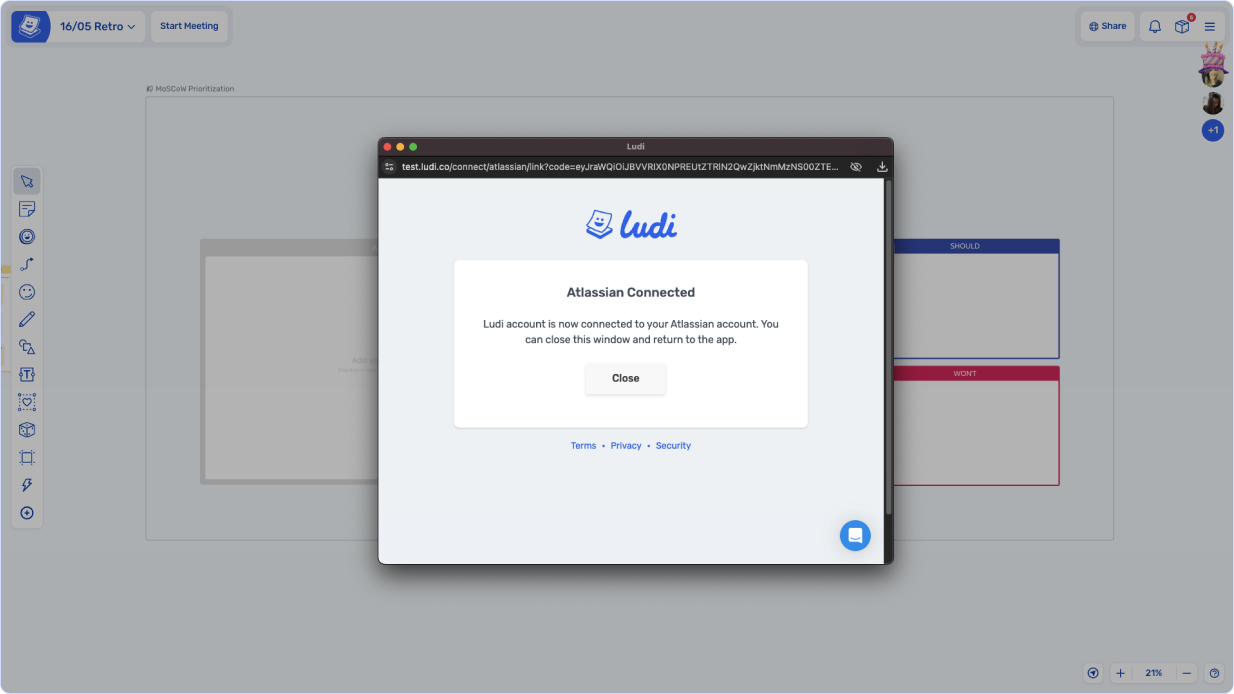
To connect your Atlassian account and import Jira cards, use the Insert option in the [Toolbar](/boards/the-tools.md), click the board name and choose Import/Export, then Import Data, or if you are using one of our Jira 'powered' templates you will see a 'Import From Jira' button on the board.
Sign-in to Atlassian to connect
Connection complete
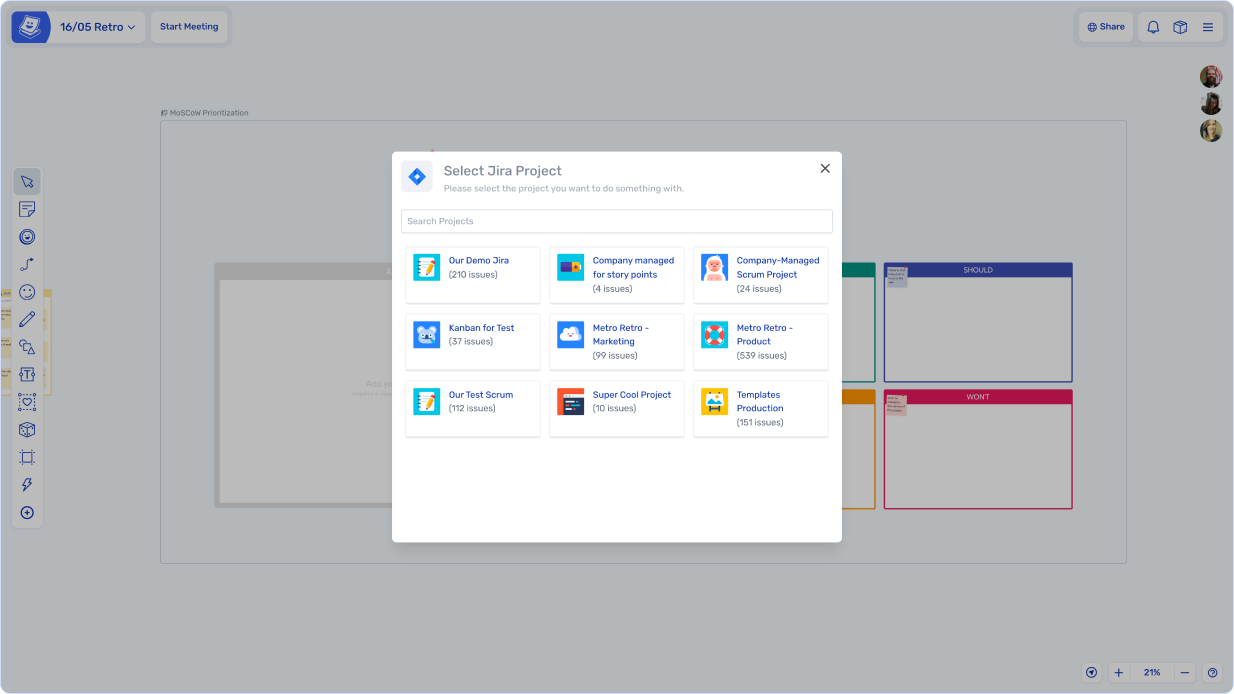
Select Project
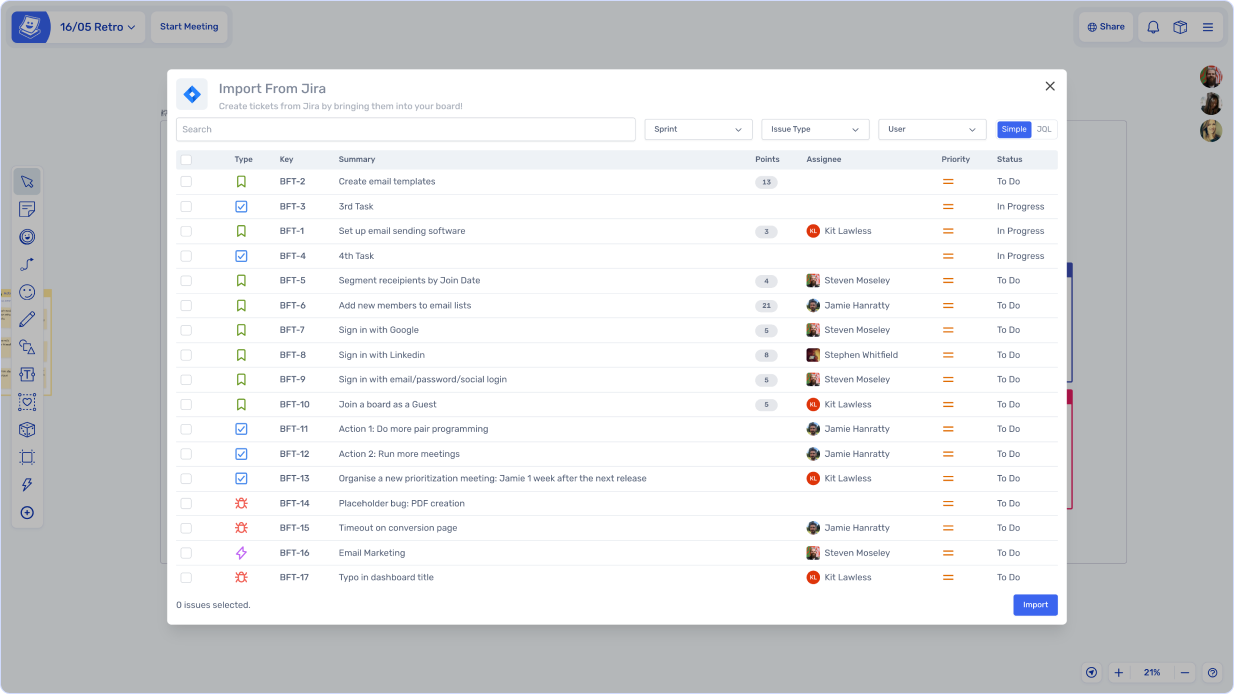
Select items from project and import
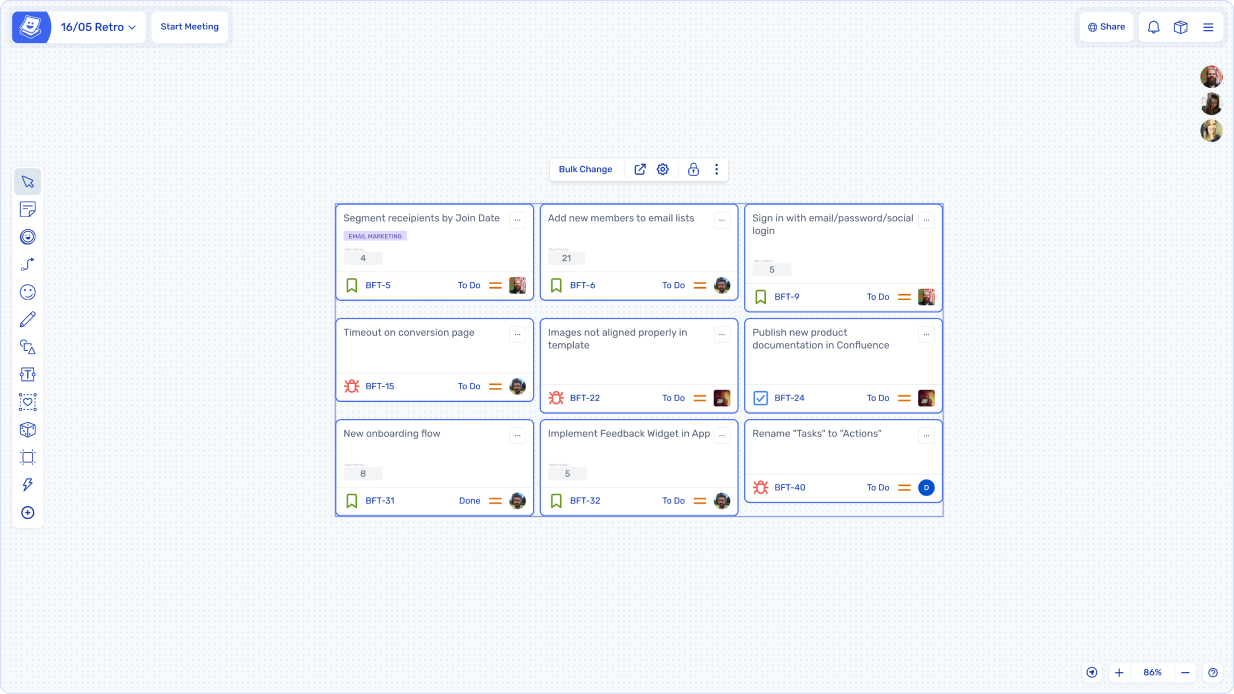
Your Jira cards will now be added to your board and ready to use.
---
# Agent Instructions
This documentation is published with GitBook. GitBook is the documentation platform designed so that both humans and AI agents can read, navigate, and reason over technical content effectively. Learn more at gitbook.com.
## Querying This Documentation
If you need additional information that is not directly available in this page, you can query the documentation by asking a question.
Perform an HTTP GET request on the following URL with the `ask` and `goal` query parameters:
```
GET https://docs.spreo.io/boards/import-data-to-your-boards.md?ask=&goal=
```
`ask` is the immediate question: it should be specific, self-contained, and written in natural language.
`goal` is what the user is ultimately trying to achieve, the reason they need the answer. Sharing it helps GitBook give you a better, more relevant answer. A goal is most helpful when it describes the outcome the user wants rather than restating the question. For example, with `ask=how do I create an API token`, a goal like `automate deployments from our CI pipeline` lets GitBook tailor the answer to that use case.
The response will contain a direct answer to the question and relevant excerpts and sources from the documentation.
Use this mechanism when the answer is not explicitly present in the current page, you need clarification or additional context, or you want to retrieve related documentation sections.