> For the complete documentation index, see [llms.txt](https://docs.spreo.io/llms.txt). Markdown versions of documentation pages are available by appending `.md` to page URLs; this page is available as [Markdown](https://docs.spreo.io/boards/host-controls.md).

# Host controls

The controls a Meeting Host uses to run a session: hosts, tools, private writing, timer, anonymity, ready check and polls.

The Host controls are available when Meeting mode is active, and they help you run a productive collaboration session.

### Turn on Meeting Mode

Select 'Start Meeting' at the top of the board:

<figure><img src="https://2875185778-files.gitbook.io/~/files/v0/b/gitbook-x-prod.appspot.com/o/spaces%2FwEhLPSRTDuhd61395hZu%2Fuploads%2F14PEEjuWxrauth2l6KbK%2Fswitch-to-meeting-mode.png?alt=media&#x26;token=f5110632-75eb-4771-8b83-974a081049a5" alt=""><figcaption></figcaption></figure>

### Meeting controls

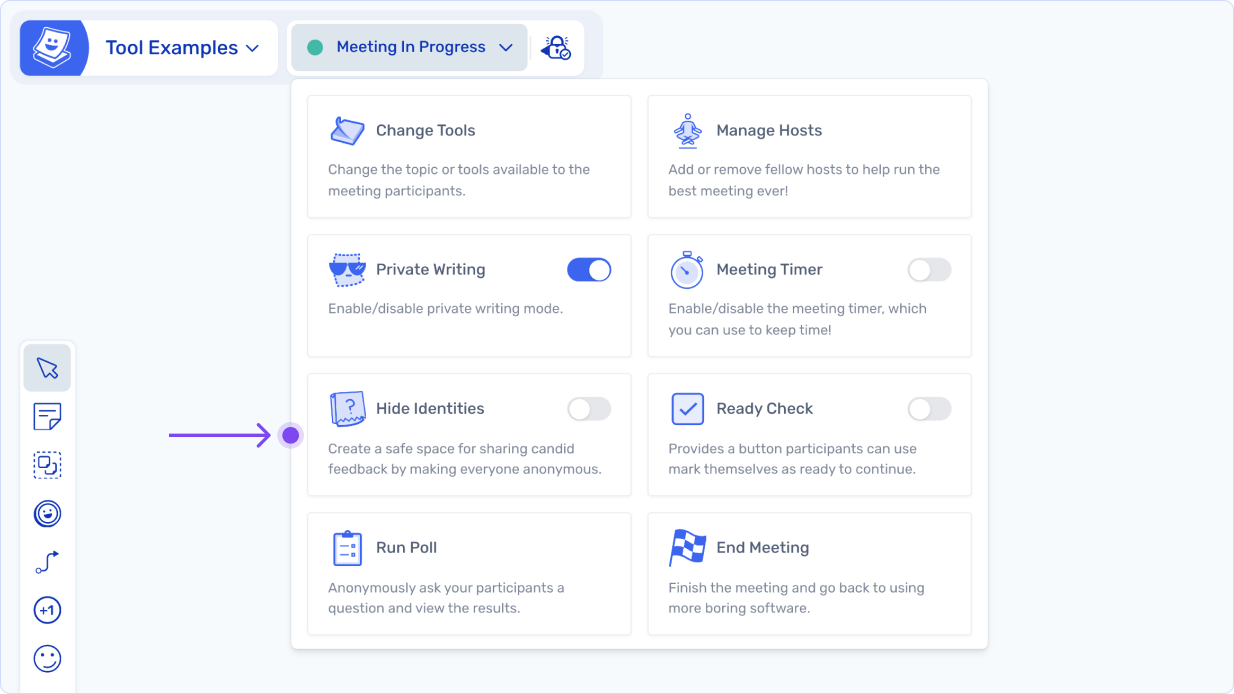
Click on the 'Meeting In Progress' status indicator at the top of the board.

<figure><img src="https://2875185778-files.gitbook.io/~/files/v0/b/gitbook-x-prod.appspot.com/o/spaces%2FwEhLPSRTDuhd61395hZu%2Fuploads%2FSFGphMjWSPjF6jOo4yL9%2Ftools-host-controls.png?alt=media&#x26;token=df7b9719-ed68-4c0a-9851-5791753002c7" alt=""><figcaption></figcaption></figure>

<table><thead><tr><th width="228">Meeting Tool</th><th>Function</th></tr></thead><tbody><tr><td>Change Tools</td><td>Change the board tools available to meeting participants</td></tr><tr><td>Manage Hosts</td><td>Add or remove hosts to help with your meeting</td></tr><tr><td>Private Writing</td><td>Enabled by default. Show or Hide text on participant sticky notes</td></tr><tr><td>Meeting Timer</td><td>Enable/Disable a timer for your meeting</td></tr><tr><td>Hide Identities</td><td>Create a space for candid feedback by making everyone anonymous</td></tr><tr><td>Ready Check</td><td>Provides a button for participants to mark themselves as ready</td></tr><tr><td>Run Poll</td><td>Anonymously ask your participants a question and view results. See <a href="#run-a-poll">Run a poll</a></td></tr><tr><td>End Meeting</td><td>Finish the meeting</td></tr></tbody></table>

### Who is the Host?

The person who starts the meeting becomes the Host. Use 'Manage Hosts' to add co-hosts or to hand the meeting over.

* Only members of your organization can host. Guests can never be a Host.
* If you remove every Host, there is no single Host and all team members on the board act as Host.
* If every Host has been away from the board for 10 minutes, team members see a 'Take Over Meeting' option under the meeting status button.
* If you are the only person on the board, you become the Host automatically.

### Bring everyone to you

Click your own avatar in the participant list and choose 'Everyone To Me' (or press `Shift` + `B`) to move every participant's view to where you are. Only Hosts can do this.

### Ready Check

Ready Check adds an 'I'm ready' button beside each person's avatar. As people mark themselves ready, a counter shows how many are ready and who you are still waiting for. The Ready Check ends automatically when the meeting ends.

### Run a poll

Polls let the Meeting Host ask everyone on the board a question and see the combined answers. Answers are anonymous.

1. Start a meeting, then click 'Meeting in Progress' at the top of the board and choose 'Run Poll'.
2. Pick a poll type.
3. Write your question and, for choice polls, your answers.
4. Choose 'Start Now' to run the poll straight away, or 'Save As Button' to place a 'Start Poll' button on the board that you can press later.

<figure><img src="https://2875185778-files.gitbook.io/~/files/v0/b/gitbook-x-prod.appspot.com/o/spaces%2FwEhLPSRTDuhd61395hZu%2Fuploads%2FgSJAJcCJEt2SQlXJGoz1%2Fpoll-create.png?alt=media&amp;token=19ad0b7b-70a6-4ef2-9242-609fbf81b3a7" alt="Setting up a Multiple Choice poll with a question and five answers, ready to Save As Button or Start Now"><figcaption></figcaption></figure>

#### Poll types

<figure><img src="https://2875185778-files.gitbook.io/~/files/v0/b/gitbook-x-prod.appspot.com/o/spaces%2FwEhLPSRTDuhd61395hZu%2Fuploads%2FMo0lOSDaPSrPNjg3JnYG%2Fpoll-types.png?alt=media&amp;token=0cf22083-556a-498e-84b3-009c24eaf0f0" alt="The Run Poll menu with Single Choice, Multiple Choice and Number Scale"><figcaption></figcaption></figure>

| Type            | How it works                                               |
| --------------- | ---------------------------------------------------------- |
| Single Choice   | Everyone picks one answer                                  |
| Multiple Choice | Everyone can pick more than one answer                     |
| Number Scale    | Everyone picks a number on a scale. The default is 0 to 10 |

Questions can be up to 140 characters. Choice polls take between 2 and 10 answers, of up to 70 characters each.

#### Poll results

The poll opens for everyone who can edit the board. Results appear once everyone connected to the board has answered.

<figure><img src="https://2875185778-files.gitbook.io/~/files/v0/b/gitbook-x-prod.appspot.com/o/spaces%2FwEhLPSRTDuhd61395hZu%2Fuploads%2FWJAvMQ8y5LhfJoAtoAYE%2Fpoll-participate.png?alt=media&amp;token=18e1559c-75a6-4d3e-8c90-50702241c5d4" alt="A participant answering a Multiple Choice poll"><figcaption></figcaption></figure>

The Host can then choose 'Add To Board' to place the results on the board as a chart, or 'Finish' to close the poll.

<figure><img src="https://2875185778-files.gitbook.io/~/files/v0/b/gitbook-x-prod.appspot.com/o/spaces%2FwEhLPSRTDuhd61395hZu%2Fuploads%2FDbjDKejEI6aJx8MuCwXv%2Fpoll-result.png?alt=media&amp;token=2ac048c3-56a9-4b57-8aa8-139d443e9ff9" alt="Poll results showing the share of answers for each option, with Add To Board and Finish"><figcaption></figcaption></figure>

{% hint style="info" %}
TIP / Save polls as buttons while you prepare your board, so a check-in or confidence vote is ready to start with one click during the meeting.
{% endhint %}

### Changing tools for meeting participants

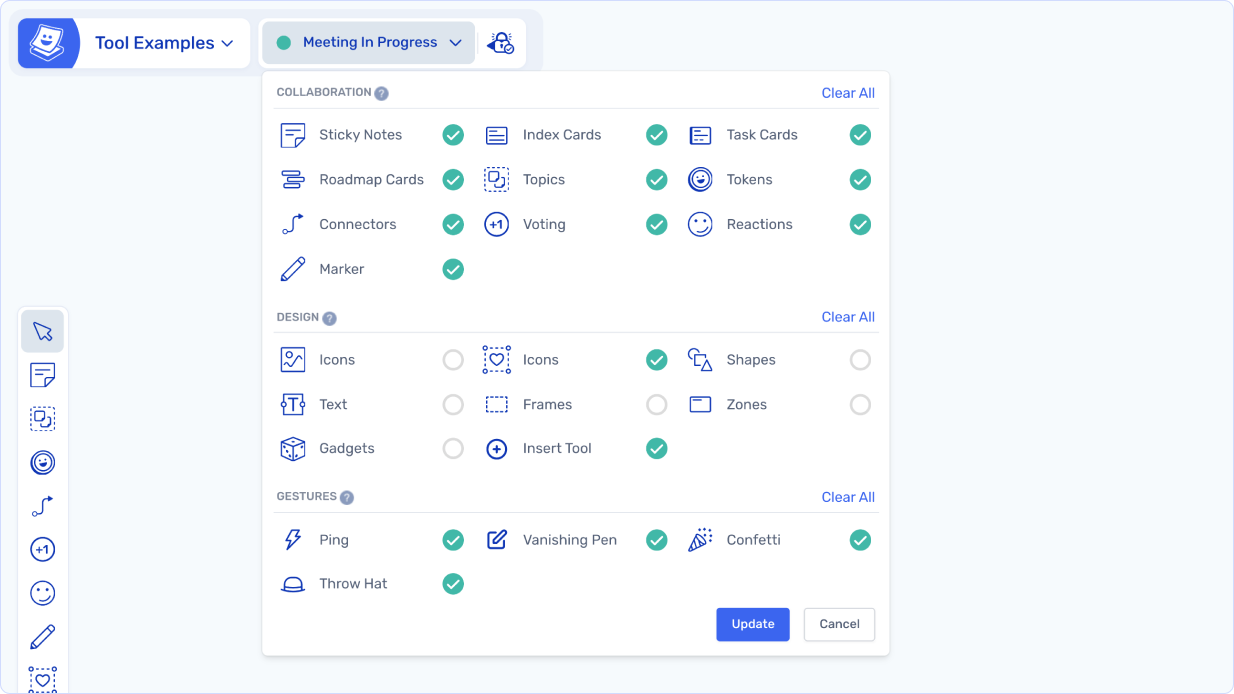
In the Meeting Tools menu you can adjust what your participants are able to access, these options are grouped in 3 categories, Collaboration, Design, and Gestures.

By default participants get the collaboration tools: stickies and cards, pages, topics, tokens, icons, voting, reactions, comments, connectors, tags, the marker and gestures. Shapes, text, zones and frames, gadgets and Insert are off until you enable them.

If you do make any changes to our defaults, be sure to click the 'Update' button when you're done.

<figure><img src="https://2875185778-files.gitbook.io/~/files/v0/b/gitbook-x-prod.appspot.com/o/spaces%2FwEhLPSRTDuhd61395hZu%2Fuploads%2FZB0jUW0rtLFdP8VQAYHl%2Ftools-host-change-tools.png?alt=media&#x26;token=36994b1f-fae1-418b-8d27-59bb5151d67d" alt=""><figcaption></figcaption></figure>

### Hide Identities

One of our Host Controls which requires special mention is Hide Identities, it allows you to make all participants anonymous, and to stop Spreo tracking what they wrote or where they voted.

<figure><img src="https://2875185778-files.gitbook.io/~/files/v0/b/gitbook-x-prod.appspot.com/o/spaces%2FwEhLPSRTDuhd61395hZu%2Fuploads%2FdNu5eq3OKLWI17z1emjZ%2Ftools-hide-identities.png?alt=media&#x26;token=d2c28784-0388-46cb-9c12-62b5cb6ba4b4" alt=""><figcaption></figcaption></figure>

When Hide Identities is on:

* you can’t tell who is who
* you can’t tell who wrote a sticky note, ever!
* voting is anonymous

Hide Identities is a mode that you can turn on and off, to use whenever you need - whether for the whole session or just one activity.

#### With Hide Identities enabled

Anything written or voted on when Hide Identities is active stays that way, forever. Nothing can ever be tied back to an individual.

When you’re done, turn Hide Identities off to go back to regular mode, where all new contributions and votes are tracked again.

<table><thead><tr><th width="343.5">Regular mode</th><th>Hide Identities on</th></tr></thead><tbody><tr><td>Everyone has an avatar</td><td>All avatar pictures replaced with a single question mark</td></tr><tr><td>All sticky notes show the author</td><td>No authors</td></tr><tr><td>Individual handwriting for each person</td><td>Everyone’s handwriting is the same font</td></tr><tr><td>Can spotlight a person’s stickies and votes</td><td>Spotlight disabled in anon mode</td></tr><tr><td>Can spotlight a person's votes</td><td>All votes are anonymous</td></tr><tr><td>Can Follow other people</td><td>Following is disabled during anonymous mode</td></tr><tr><td>Export contains who wrote and voted</td><td>Export does not contain who wrote and voted while in anon mode</td></tr><tr><td>Participant list shows everyone on the board</td><td>Participant list is hidden</td></tr><tr><td>Comments show who wrote them</td><td>Comments are anonymous</td></tr></tbody></table>

Messages inside Spreo also call this Anonymous Mode. While it is on, the author of a note is never saved to the board.

#### Why isn’t everything always anonymous in Spreo?

In short - we don’t believe anonymity should be default for team sessions, but we recognize that anonymity can be a useful tool in certain scenarios:

* helping newer teams raise awkward issues
* reducing bias like zombie groupthink, or the HIPPO effect
* is another useful tool in a facilitators toolbox


---

# Agent Instructions
This documentation is published with GitBook. GitBook is the documentation platform designed so that both humans and AI agents can read, navigate, and reason over technical content effectively. Learn more at gitbook.com.

## Querying This Documentation
If you need additional information that is not directly available in this page, you can query the documentation by asking a question.

Perform an HTTP GET request on the following URL with the `ask` and `goal` query parameters:

```
GET https://docs.spreo.io/boards/host-controls.md?ask=<question>&goal=<user_goal>
```

`ask` is the immediate question: it should be specific, self-contained, and written in natural language.
`goal` is what the user is ultimately trying to achieve, the reason they need the answer. Sharing it helps GitBook give you a better, more relevant answer. A goal is most helpful when it describes the outcome the user wants rather than restating the question. For example, with `ask=how do I create an API token`, a goal like `automate deployments from our CI pipeline` lets GitBook tailor the answer to that use case.

The response will contain a direct answer to the question and relevant excerpts and sources from the documentation.

Use this mechanism when the answer is not explicitly present in the current page, you need clarification or additional context, or you want to retrieve related documentation sections.